How to track time spent on tasks (and plan with real numbers)
 Sérgio VidalCreator of Todonex
Published on 5 min read
In this article
To track time spent on tasks, start a timer when you begin a task, pause it when you stop, and look at the total when you finish. Do it for one or two weeks with the tasks that repeat in your work, and you'll know how long they really take, which makes your plans, quotes and deadlines realistic. Below: why our guesses are usually wrong, a simple 5-step method and how to time each task in Todonex.
Why your time estimates are usually wrong
“This will take twenty minutes.” An hour later, you're still on it. If that sounds familiar, you're in good company. Psychologists call it the planning fallacy: the tendency to underestimate how long our own tasks will take, even when we've done similar tasks before and they ran late too.
In a classic set of studies, Roger Buehler, Dale Griffin and Michael Ross asked people to predict when they would finish tasks like academic projects and then checked what actually happened. People consistently finished later than they had predicted, and they kept focusing on how the task would go this time instead of remembering how long it took last time (Buehler, Griffin and Ross, 1994). Project managers know the same problem from the other side: plans built on optimistic estimates tend to slip (PMI).
The fix isn't trying harder to guess. It's replacing the guess with a measurement. Once you've timed a task a few times, you stop asking “how long should this take?” and start knowing how long it does take.
What timing your tasks tells you
- Your real numbers. Writing the weekly report takes 25 minutes, not 10. Preparing a presentation takes almost three hours, not one. Now you can plan the day around facts.
- Where the time goes. A few small tasks, like replying to emails or formatting documents, often add up to more time than the big ones.
- What to charge. If you work by the project, knowing how many hours a kind of job really takes helps you quote a fair price instead of a hopeful one.
- When to start. If a task takes three hours and it's due tomorrow at 9, you know you need to start today, not tonight.
How to track time on tasks: a 5-step method
- Pick the tasks worth measuring. Start with the ones that repeat or that you usually underestimate: reports, proposals, presentations, client replies, chores you put off. You don't need to time everything.
- Write down your guess first. Before you start, note how long you think it will take. Comparing the guess with the real time is what trains your sense of time.
- Start when you start, pause when you stop. Interruptions count only if you keep working through them. When you get up for coffee or switch to something else, pause.
- Time one task at a time. If two timers run at once, neither number means much. One task, one timer, full attention, just like in monotasking.
- Review once a week. Look at the totals. Which tasks took much longer than your guess? Use those numbers for next week's plan and add a buffer to the ones that always run late.
How to time each task in Todonex
The Todonex Timer is a Premium feature. It lives right on the task, so there's no separate app to open and nothing to copy over later.
1. Turn on the Timer for a task
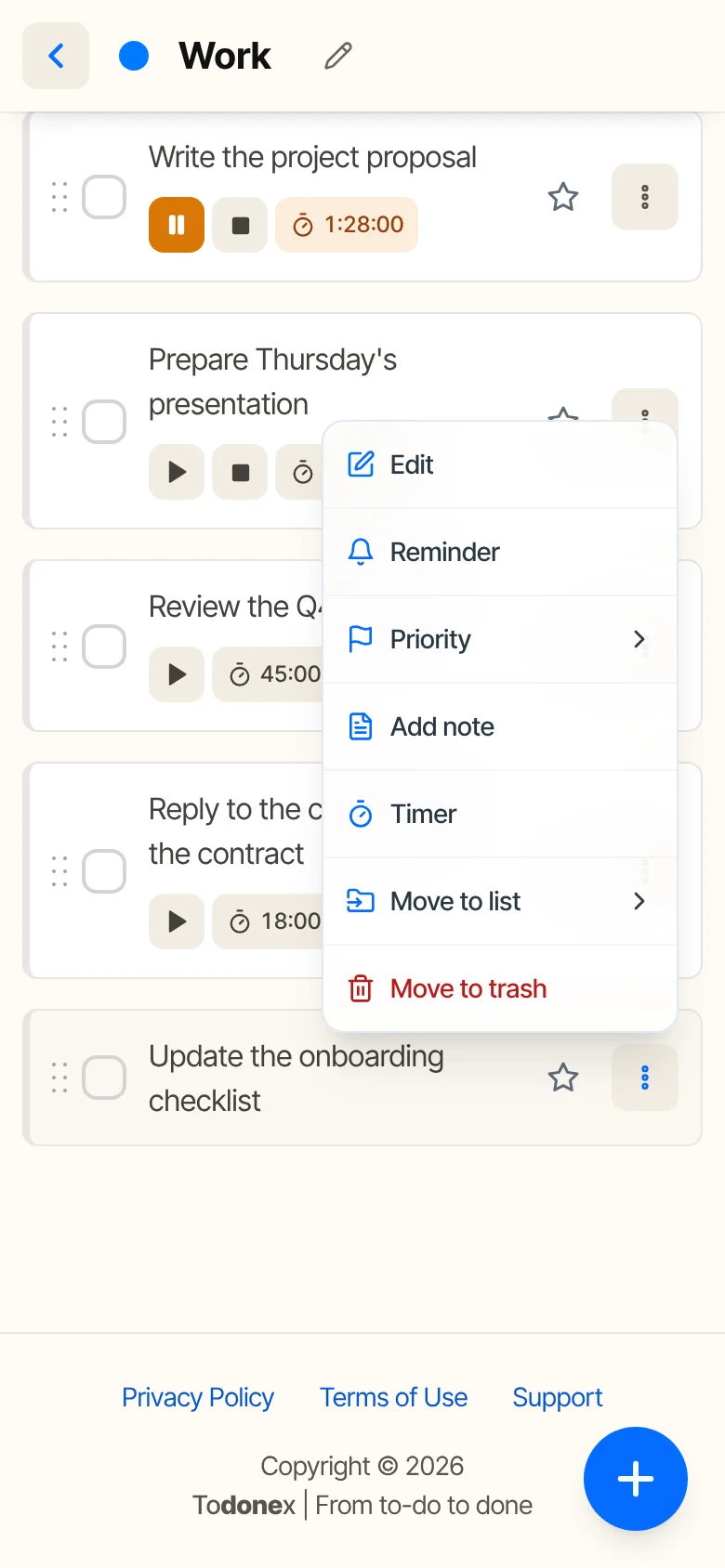
Open the task's menu (the three dots) and choose Timer. A play button appears under the task. Turn it on only for the tasks you want to measure, so the list stays clean.
2. Play, pause and stop
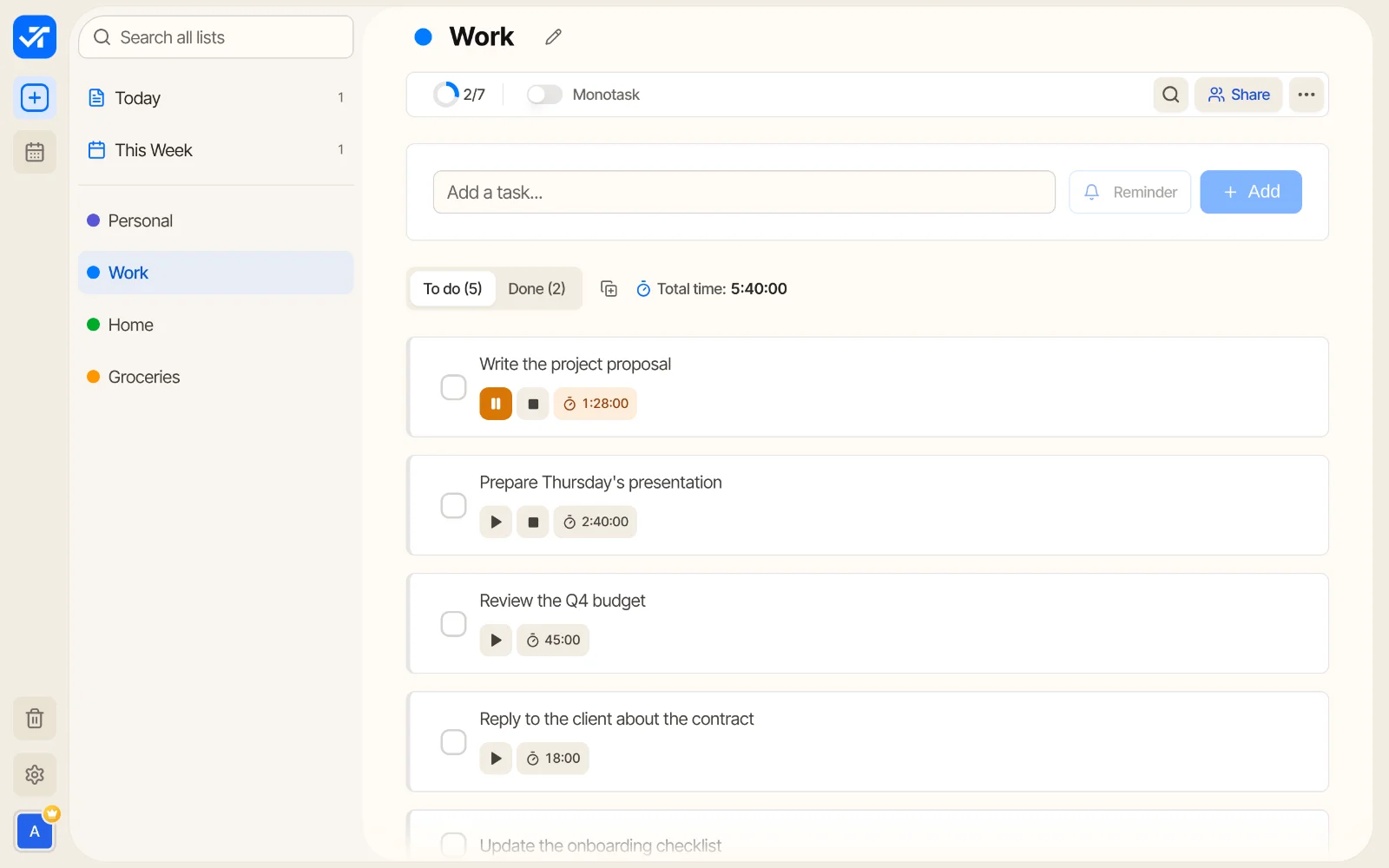
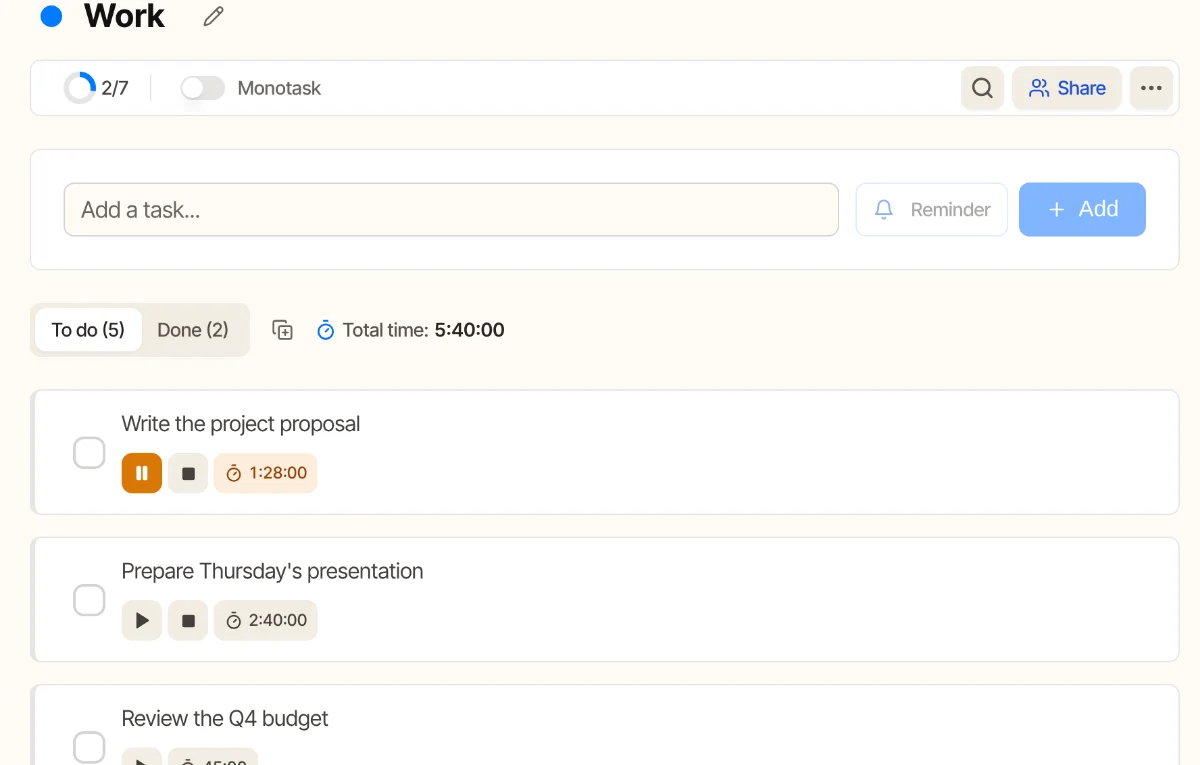
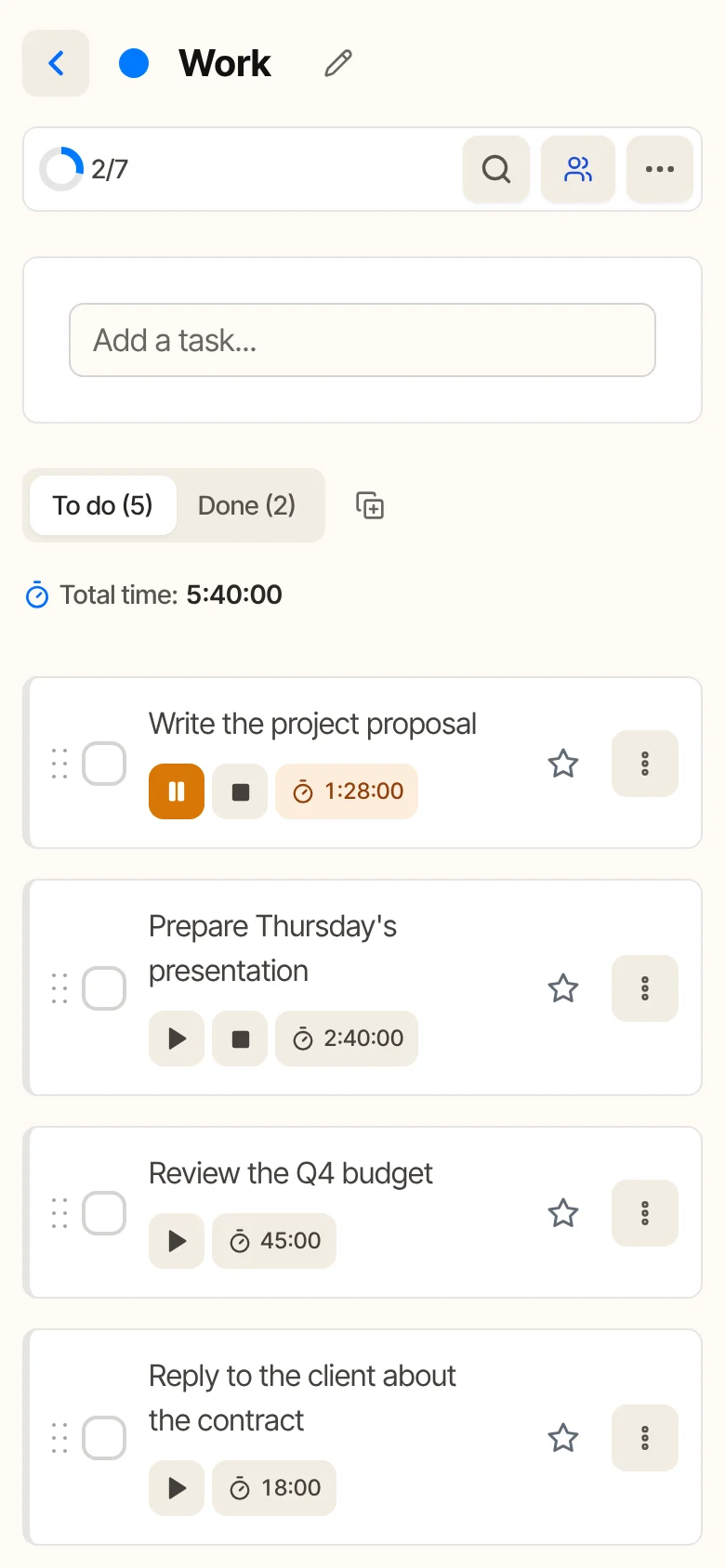
- Play starts counting. The running timer turns orange so you can spot it.
- Pause stops counting for a moment. Press play again and it continues.
- Stop closes the session. The next play starts a new session, and the time keeps adding up on the task.
Starting the timer on one task stops the one that was running on another, so you never count two things at once. Forgot it running? It stops on its own after 12 hours straight.
3. See the totals
Each task shows the time tracked so far, and Total time at the top adds up the whole list, including tasks you've already completed. Completed tasks keep their time in the Done tab, so you can see how long they took.
On the phone
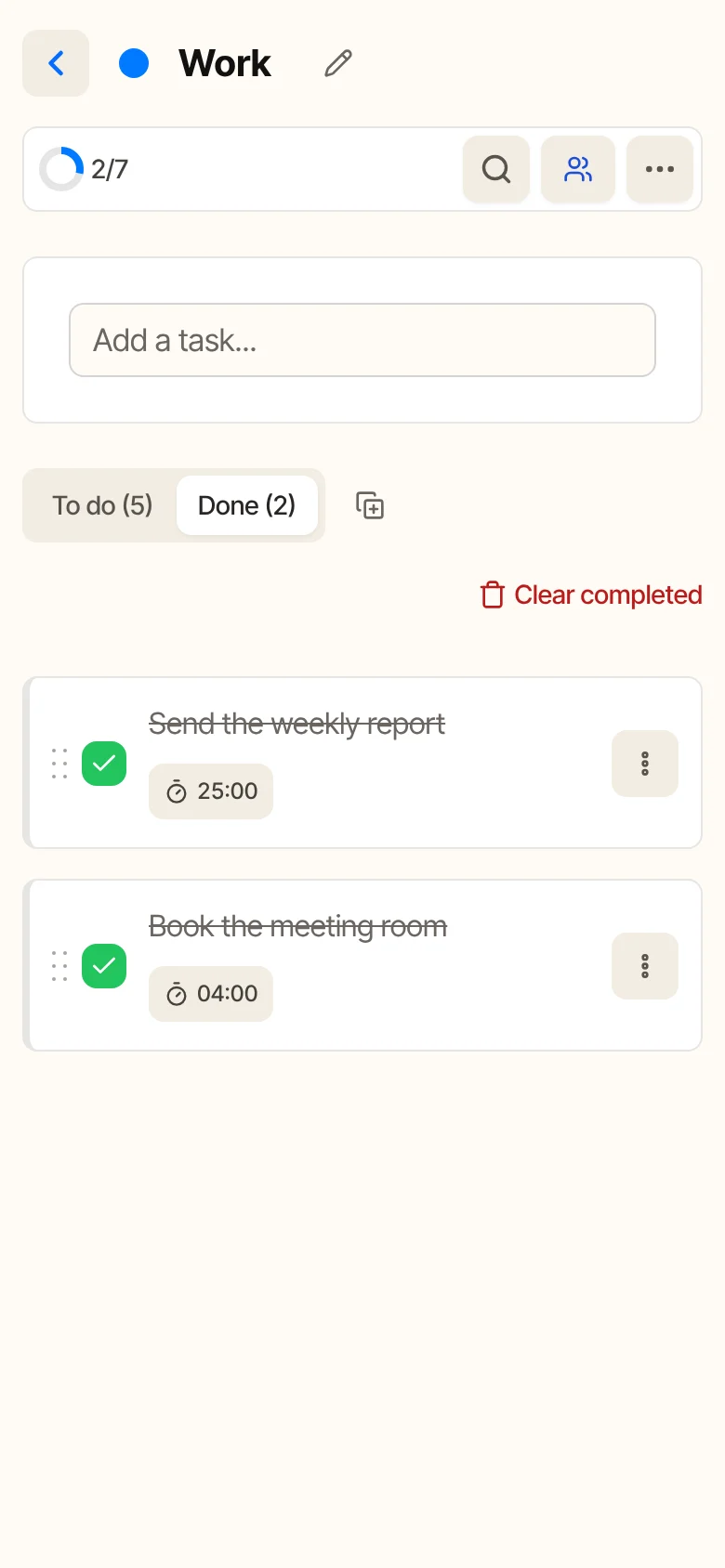
Good to know: the Timer works on your own lists. In lists shared with you, it doesn't appear. If a task already has time tracked and you turn the Timer on again, the new sessions are added to that time. To start from zero, delete the task and add it again.
Tips to get useful numbers
- Be honest with the pause. If you spent twenty minutes on your phone in the middle, pause. The goal is to learn, not to look busy.
- Break big tasks down. “Website” is too big to time usefully. “Write the homepage text” and “Pick the photos” give you numbers you can reuse.
- Use the numbers, not just collect them. When you plan tomorrow, check how long similar tasks took and fill the day with that, not with wishful thinking.
- Pair it with reminders. If a task takes two hours, set a reminder early enough to actually fit those two hours in.
Frequently asked questions
Is the Timer free?
No. The Timer is part of Todonex Premium, along with the Calendar, Priorities, Favorites, Notes and shared lists. Lists, reminders and Monotask Mode are on the free plan.
Can I run two timers at the same time?
No. Starting the timer on one task stops the one running on another. That's on purpose: one task at a time gives you numbers you can trust.
What if I forget to stop the timer?
It stops on its own after 12 hours straight, so a forgotten timer doesn't count all night and all weekend.
Can I reset the time of a task?
The time belongs to the task, so it never resets by itself. To start from zero, delete the task and add it again.
Sources
- Buehler, R., Griffin, D. and Ross, M. (1994). Exploring the “planning fallacy”: Why people underestimate their task completion times. Journal of Personality and Social Psychology, 67(3), 366-381.
- Project Management Institute. Planning for the planning fallacy.
Your next task is waiting.
Create your free Todonex account, write down what's on your mind and get it done, one task at a time. No credit card.
Start free